Dynamic QR Codes: Create, Manage, and Track Scans
A Dynamic QR code contains a SOFRIQ short link rather than the final destination URL. When someone scans the code, SOFRIQ redirects them to the destination you selected. Because the destination is managed separately, you can change it later without changing the short link encoded in the QR code.
Dynamic QR codes are saved to your SOFRIQ account. From the QR Code dashboard, you can view and download each code, edit its name or destination, and open its scan analytics. This guide covers the complete workflow, from creation to ongoing management.
Dynamic QR vs Static QR
A Static QR code contains its destination URL directly. If that URL changes, you need to create and distribute a new code. A Dynamic QR code contains a SOFRIQ short link that redirects to a separately stored destination. Update that destination in your dashboard, and the same short link—and the same printed QR code—continues to work.
Choose a Dynamic QR code when you may need to change the destination or want scan reporting. Choose a Static QR code for a direct URL when you do not need SOFRIQ to manage its destination or provide analytics. See Static QR Codes for more information.
Requirements and Plan Limits
You must be signed in to create, manage, or view analytics for Dynamic QR codes. If you are not signed in, the generator will offer options to create an account or log in.
Your plan sets the number of Dynamic QR codes you can have active at one time.
The generator checks your available capacity. If you reach your plan limit, it explains the limit and provides an option to compare plans. Your existing codes and recorded scan data remain available when you reach the limit. Deleting a code is permanent, so review its effect on your code and scan history before confirming.
Create a Dynamic QR Code
- Go to the QR Code Generator and select Dynamic QR. Go Now!
- Choose the URL content type for a managed, redirecting code.
- Enter a name to help you identify the code in your dashboard.
- Choose a short-link name and wait for the availability check.
- Enter the destination URL that scanners should reach.
- Customize the QR colors or add an optional logo.
- Review the preview, then select Generate.
QR Code Name
Enter a name of up to 80 characters. This name helps identify the code in your dashboard and analytics. It is not the destination URL or the short-link name.
Choose a Short-Link Name
The short-link name becomes part of the SOFRIQ URL embedded in your QR code. For example:
sofriq.com/tools/qr-code-generator/your-short-name
Use 3–50 lowercase letters, numbers, and single hyphens between terms. Spaces, uppercase letters, underscores, and consecutive hyphens are not accepted. The name must also be available; if someone else has already claimed it, choose another. Once created, the short link is the address embedded in the code, so changing the destination does not require changing the short-link name.
Set the Destination URL
A destination URL is the specific web address where users are directed after scanning the QR Code. It serves as the bridge between our server and your website, landing page, or product catalog—for example:
myshop.com/new-product—ensuring a seamless transition for the audience to take a desired action.
Check the URL carefully before creating the code; you can update it later from your QR Codes dashboard.
Customize Your Dynamic QR Code
QR and Background Colors
Set the QR pattern color and its background color. The live preview reflects your choices. Use clear contrast so the pattern remains easy to scan, and test the downloaded code in its final colors before printing or sharing it.
Add an Optional Logo
You can add a centered logo in PNG, JPG, or WebP format. The file must be 1 MB or smaller. Use a simple, high-contrast image and review the preview. A logo can cover part of the QR pattern and reduce scan reliability, so always scan-test the downloaded code before using it.
The create form saves the selected colors and logo with the code. The dashboard’s edit option changes the QR code name and destination; it does not provide controls to change the saved colors or logo. If you need a different appearance, create a new code and update any materials that use the old one.
Preview and Download
The live preview displays the QR code for your SOFRIQ short link, not the destination URL itself. That is what allows the destination to be changed later while the QR code stays the same. You can download the preview as a PNG before generating the saved code. After generation, the code is also available to download from its dashboard card or analytics page. An example of a Dynamic QR Code is this:
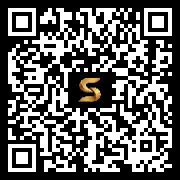
Scan-test the downloaded image and confirm it redirects to the intended destination. If you print the code, test a sample at its final size and placement. Keep the pattern unobstructed and use enough contrast for a phone camera to read it.
Generate and Open Your Dashboard
When you select Generate, SOFRIQ checks that you are signed in, that your plan has available capacity, and that your short-link name is available. After successful creation, you will be redirected to the QR Codes dashboard, where the saved code appears. This is like a library where you can manage all Dynamic QR Codes you've generated, edit content, & More.
Each dashboard card shows the code name, short link, active status, total scan count, and creation date. From the card, you can copy the link, download the QR image, open analytics, edit the code, or delete it.
Edit a Dynamic QR Code
Select Edit on the code’s dashboard card to change its name or destination URL. Save your changes when finished. The short link and QR image stay the same, so existing print materials do not need to be replaced when you update the destination.
After saving, test the short link to confirm it opens the new destination. The destination must still be a valid HTTP or HTTPS URL and cannot include embedded login credentials.
View Scan Analytics
Select the analytics action on a dashboard card to open analytics for that specific code. You can choose a reporting period of the last 7, 30, or 90 days. The page shows the code’s lifetime total scans, scan totals for the selected period, estimated unique scans, and daily scan activity.
Understand the Scan Counts
Total scans count recorded scan events; repeated scans can therefore increase this number. Estimated unique scans are calculated per QR code and UTC day using a privacy-preserving visitor hash. They are an estimate, not a guaranteed count of distinct people. A person scanning the same code on different UTC days may be counted again.
Audience Breakdowns
Depending on the information available in a scan request, analytics can show breakdowns for devices, browsers, operating systems, and locations. Location is shown only when trusted hosting headers provide it, so it may be unavailable. These categories describe detected request information and should be treated as approximate technical context, not verified personal details.
Export Analytics
Select Export CSV to download scan-event data for the selected period. The export can include scan time, QR code name and short link, request method, browser, device, operating system, available country, region and city, and the request’s language preference. Use the export to review or process the available scan records in spreadsheet software.
Delete a Dynamic QR Code
Select Delete on the dashboard card and confirm the action to remove a code. Deletion permanently removes the code and its associated scan activity. It cannot be undone. Once deleted, its short link is no longer available to redirect visitors, so QR codes already printed or shared using that link will stop working.
About the Wi-Fi Preview
The Dynamic QR workspace also includes a Wi-Fi tab where you can enter a network name (SSID), security type, password when required, and whether the network is hidden. It displays a Wi-Fi QR preview. This is a separate preview tool: the current managed Dynamic QR workflow saves URL codes to your dashboard, while the Wi-Fi tab does not save a managed code or provide the same destination editing and analytics features.
A Wi-Fi QR code may contain network access details. Only share it with people you intend to give access to, and take care when displaying or distributing the preview.
Troubleshooting
- Sign-in is required: Log in or create a SOFRIQ account before creating a Dynamic QR code or opening your saved codes and analytics.
- Your plan limit has been reached: Review the limit shown in the generator. Delete a code only if you no longer need it and understand that its scan history will also be deleted, or compare available plans.
- The short-link name is invalid: Use 3–50 lowercase letters, numbers, and single hyphens. Remove spaces, underscores, and consecutive hyphens.
- The short-link name is already in use: Choose a different name. Availability can change if someone claims the name before you finish creating your code.
- The destination is rejected: Check that it is a complete, valid HTTP or HTTPS URL and does not contain a username or password.
- The logo cannot be used: Select a PNG, JPG, or WebP image no larger than 1 MB. If it still cannot be read, try another supported image file.
- The QR code is difficult to scan: Increase contrast, simplify or remove the logo, and test the downloaded image at its final size and placement.
- The short link no longer opens: Check that the code still exists in your dashboard and that the destination URL is correct. A deleted code cannot redirect visitors.
- Analytics show no scans: Check the selected date range and confirm that someone has scanned the code’s short link. Static QR scans are not included in Dynamic QR analytics.
Before You Share Your Dynamic QR Code
- Confirm that the short-link name is easy to recognize and available.
- Check that the destination opens the correct page on a mobile device.
- Review color contrast and scan-test the QR image, especially if it has a logo.
- Keep the short link active for as long as printed or shared codes are in use.
- Use the dashboard to update destinations and review analytics when needed.
- Export any scan data you need before deleting a code; deletion also removes its scan activity.