SOFRIQ Publish connects Instagram business or creator accounts through Facebook authorisation. You sign in with Facebook and grant SOFRIQ access to manage eligible Facebook Pages and their linked Instagram accounts.
After authorisation, SOFRIQ displays the eligible Instagram Business or Creator accounts, allowing you to select the profile that should be available for scheduled publishing.
Supported Instagram Connection Methods
SOFRIQ currently starts the Instagram connection through Facebook Login. It does not use a separate Instagram username-and-password login screen for channel authorisation.
The authorised Facebook account must have access to a Facebook Page linked with an eligible Instagram account. SOFRIQ then loads that Instagram account through the Facebook authorisation setup.
Instagram Account Requirements
Before connecting Instagram to SOFRIQ, make sure that:
- You have signed in to a SOFRIQ account.
- The Instagram account is switched to a Business or Creator account.
- The Facebook account used for authorisation manages that Page.
- The Page and Instagram account accept publishing permissions.
- Your Publish plan has an available Instagram account slot.
Personal Instagram accounts are not displayed as eligible accounts. Convert the profile to a professional account and complete the Facebook Page connection before reconnecting SOFRIQ.
If necessary, log in to SOFRIQ or create your SOFRIQ account first.
Understand Instagram Accounts and Destinations
For Instagram connections, the selected Instagram account is both the connected account and the publishing destination.
SOFRIQ does not require you to select a separate Instagram destination from a list. For example, when the eligible Instagram profile @brandname is selected, scheduled posts are directed to that profile.
The Facebook Page is used as the required connection and authorisation bridge. It is not saved separately as the Instagram publishing destination.
For the shared account and destination process, read How to Connect Social Channels with SOFRIQ Publish.
Prepare the Instagram Account Before Connecting
Open Instagram and confirm that the account is configured as a Business or Creator account. If not, follow the steps:
- Open the Instagram profile.
- Open Settings and activity.
- Open Account type and tools.
- Choose an option to switch to a professional account.
- Select Business or Creator, depending on the account type you want to use.
- Complete the professional account setup.
If the Instagram profile is already professional, check the Facebook connection in Meta Business settings or Instagram account settings before continuing.
Link Instagram to a Facebook Page
SOFRIQ discovers Instagram accounts connected to Facebook Pages that the authorised Facebook account manages.
Use the following checks:
- The Facebook account owns or manages the Page.
- The Instagram professional account is connected to that Page.
- The connection remains active in Facebook and Instagram settings.
- The authorised Facebook account has permission to manage the Page.
- The Instagram and Facebook account information belongs to the same business setup.
If the professional Instagram account is linked to another Page, disconnect or move the connection using the relevant Instagram and Facebook settings, then reconnect SOFRIQ.
How to Open the Instagram Connection
- Sign in to your SOFRIQ dashboard.
- Open Channels in the sidebar.
- Find the Instagram channel card.
- Check the current channel status.
- Select Connect.
SOFRIQ redirects you to Facebook Login, not a direct Instagram login screen.
If an Instagram account is already connected, the channel card may display Reconnect or Add More.

Authorise SOFRIQ Through Facebook
The Instagram connection uses a Facebook authorisation flow because SOFRIQ loads professional Instagram accounts from Facebook Pages managed by the Facebook account.
- Select Connect on the Instagram channel card.
- Sign in to Facebook if requested.
- Select the Facebook account that manages the required Page.
- Review the Facebook Pages shown in the permission request.
- Approve access to eligible Pages and Instagram accounts.
- Complete the authorisation request.
- Wait for SOFRIQ to redirect you to the account-selection page.
SOFRIQ requests Page access and Instagram publishing access needed to identify the eligible profile and make publishing available.

What to Do if Instagram Authorisation Is Cancelled
If you close the Facebook authorisation window, cancel the request, or decline the required permissions, the Instagram connection cannot be completed.
To retry:
- Return to the SOFRIQ Channels page.
- Select Connect on the Instagram card.
- Sign in to the correct Facebook account.
- Select the Pages that manage the linked Instagram account.
- Approve the required permissions.
- Wait for the Pending Channels page to open.
How the Instagram Pending Channels Session Works
After Facebook authorisation succeeds, SOFRIQ loads your managed Facebook Pages and checks whether each Page is linked to an eligible Instagram Business or Creator account.
The temporary connection process has two time-limited stages:
- Facebook authorisation: complete sign-in and permission approval within 10 minutes.
- Instagram account selection: review and save the selected profile within 15 minutes.
If the Pending Channels session expires, the account selection is not saved. Reconnect Instagram to create a new authorization session.
For the complete Pending Channels process, see How to Connect Social Channels with SOFRIQ Publish.
Select the Instagram Account
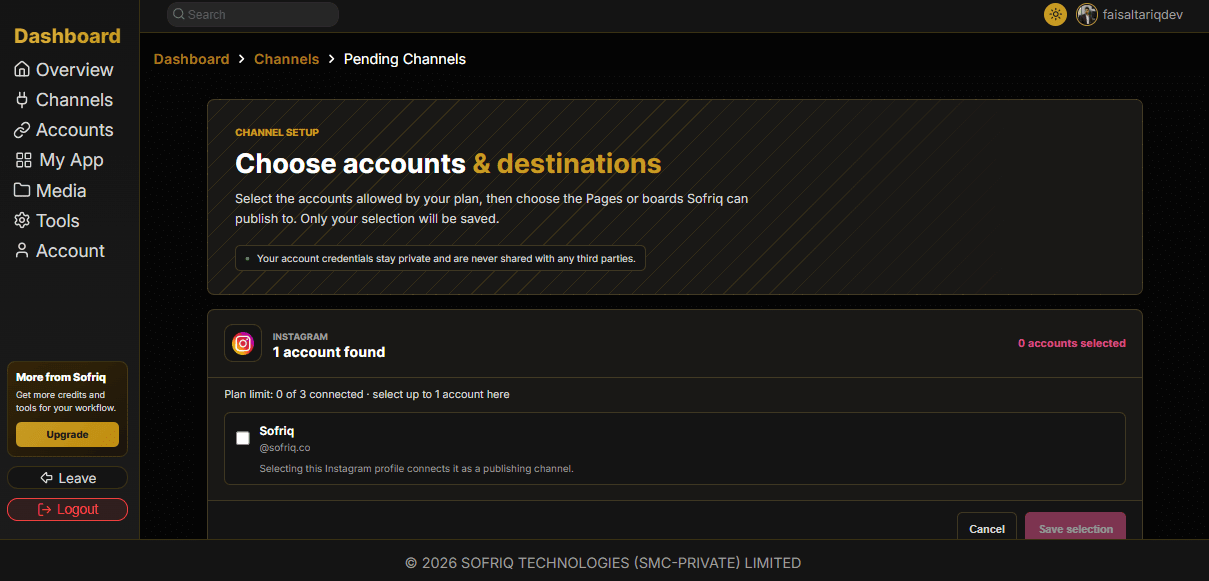
The Pending Channels page displays the eligible Instagram professional accounts SOFRIQ found through your Facebook Pages.
- Review the Instagram username and profile name.
- Confirm that the profile is the account you want to publish from.
- Check the related Facebook Page name shown with the account.
- Select the checkbox beside the Instagram account.
- Confirm that an Instagram account slot is available in your plan.
- Select Save Selection.
The selected Instagram professional account becomes the publishing destination. You do not select an additional Board or Page destination for Instagram.
Select Multiple Instagram Accounts
You can add multiple Instagram professional accounts when your SOFRIQ plan provides enough account capacity, and each account is linked to an eligible Facebook Page.
On the Pending Channels page, SOFRIQ may display several Instagram accounts. Select only the profiles you want to manage from SOFRIQ Publish.
If an Instagram profile is already connected, review the selection rather than creating another duplicate connection.
Finish Connecting Instagram
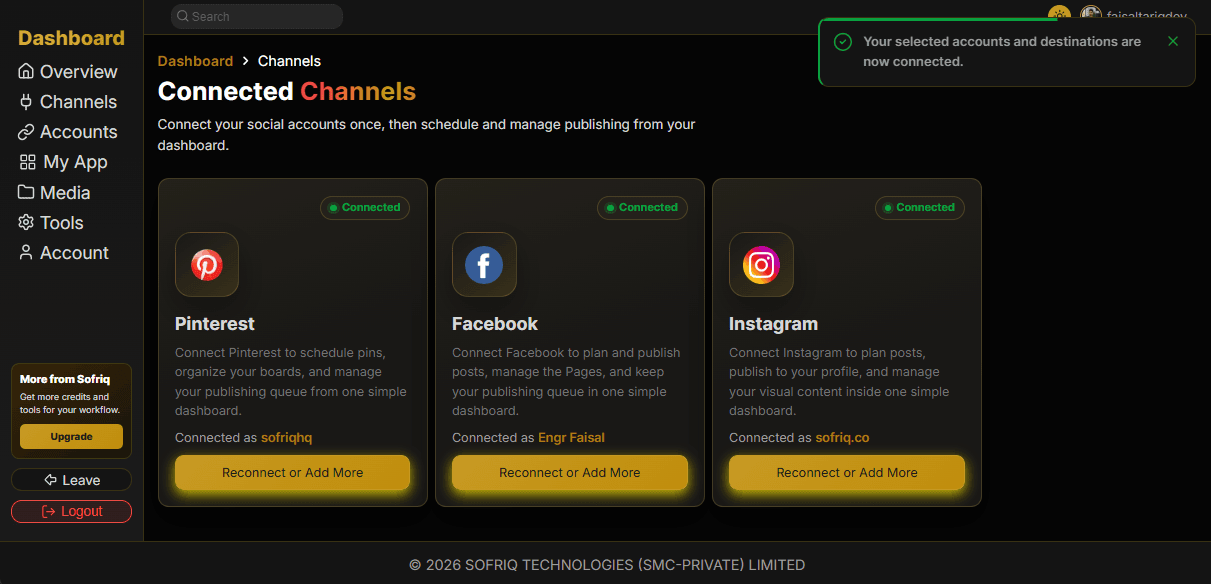
After reviewing the Instagram account and its related Facebook Page, select Save Selection. SOFRIQ saves the eligible Instagram account and returns you to the Channels page. A success notification appears with the message: "Your selected accounts and destinations are now connected."
The Instagram channel status changes from Not Connected to Connected, and the selected account username appears in the Instagram channel card.
What SOFRIQ Stores for an Instagram Connection
SOFRIQ stores the account information needed to identify and manage the selected Instagram profile, including:
- The Instagram account identifier and username.
- The profile name and biography, when available.
- The profile image, follower count, media count, and website, when available.
- The linked Facebook Page identifier and Page name.
- The authorisation and account availability status.
You do not enter your Instagram password directly into SOFRIQ. Instagram access is authorised through Facebook and remains subject to the permissions provided during setup.
If Facebook Redirects but SOFRIQ Cannot Find Instagram
This means the authorised Facebook account could not find an eligible linked Instagram professional account.
Check the following:
- Switch the Instagram profile to a Business or Creator account.
- Link the Instagram professional account to a Facebook Page.
- Confirm that the Facebook account can manage that Page.
- Grant the required Instagram and Page permissions during Facebook authorisation.
- Reconnect the Instagram channel from SOFRIQ.
If you make a profile change in Instagram or Facebook, reconnect SOFRIQ so the updated account relationship is loaded again.
If Only Some Instagram Profiles Are Loaded
If SOFRIQ finds some Instagram profiles but cannot load all of them, the Pending Channels page displays the profiles that were successfully retrieved.
A warning notification may explain that some Instagram profiles could not be fetched. Reconnect the channel if a missing profile should be available.
Before reconnecting, verify that every missing profile is professional, linked to a manageable Facebook Page, and available through the authorised Facebook account.
If an Instagram Account Is Missing
Check the Instagram Account Type
Personal profiles are not supported as eligible publishing accounts. Convert the profile to a Business or Creator account first.
Check the Facebook Page Link
The Instagram professional account must be connected to a Facebook Page managed by the authorised Facebook account.
Check Facebook Page Access
A Page must remain accessible to the Facebook profile used during authorisation. Page role or permission changes can prevent SOFRIQ from loading the linked Instagram account.
Reconnect and Review Permissions
Return to the Instagram channel card, select Reconnect or Add More, and complete Facebook authorisation again.
If the Instagram Authorisation Session Expired
Instagram authorisation has a 10-minute temporary session. If you wait too long before completing Facebook login and permission approval, return to the Channels page and begin the connection again.
If the Pending Selection Session Expired
After authorisation, the account-selection page remains available for 15 minutes. If it expires before Save Selection, reconnect Instagram and create a new session.
Reconnect or Add More Instagram Accounts
Select Reconnect or Add More when you need to:
- Refresh expired Facebook permissions.
- Add another eligible Instagram Business or Creator account.
- Load a profile newly linked to a Facebook Page.
- Restore access to a professional account that stopped appearing.
- Update account information or linked Page details.
Complete Facebook authorisation again, review the profiles on Pending Channels, and save the selected accounts within the available session.
Common Instagram Connection Problems
Personal Instagram Account Does Not Appear
Change the personal profile to a Business or Creator account and complete the Facebook Page connection.
Facebook Page Is Missing
The authorised Facebook account must manage the Page. Check its Page role in Facebook and reconnect with the correct account.
Instagram Account Does Not Show on Pending Channels
Confirm that the Instagram profile is professional, linked to an accessible Facebook Page, and eligible for the publishing permissions requested by SOFRIQ.
Instagram Authorisation Was Cancelled
Start the connection again and complete the Facebook authorisation instead of closing or declining the permission request.
Instagram Account Limit Was Reached
Disconnect an unused Instagram account or upgrade your plan if you need additional Instagram account capacity.
The Connected Instagram Account Has Lost Access
Reconnect the account through the Instagram channel card and verify that its professional profile and Facebook Page connection are still active.