SOFRIQ Publish can publish scheduled Pins to the Pinterest Boards you manage. Before creating a Publish schedule, connect a Pinterest account, review your available Boards, and select the Boards you want to use as destinations.
This article explains the complete connection process, including authorisation, Pending Channels selection, plan limits, reconnection, and common problems.
What You Need Before Connecting Pinterest
Before connecting Pinterest to SOFRIQ Publish, make sure that:
- You can sign in to your Pinterest account.
- You manage or own at least one Pinterest Board.
- Your account has permission to publish Pins to the selected Boards.
- You have not reached the Pinterest connected-account limit in your Publish plans.
- You have enough destination capacity for the Pinterest Boards you want to connect.
- You complete the authorisation through the Channels page.
If you are not already signed in to SOFRIQ, log in to your account or create a SOFRIQ account first.
Understand Pinterest Accounts and Boards
A connected Pinterest account is the authorised Pinterest profile you use with Publish. Pinterest Boards are the destinations where SOFRIQ can publish your scheduled Pins.
Connecting an account does not publish anything automatically. You must select at least one eligible Board and save your selection on the Pending Channels page.
If you want the complete account-and-destination concepts, read How to Connect Social Channels with SOFRIQ Publish.
How to Open the Pinterest Connection
- Sign in to your SOFRIQ dashboard.
- Open Channels from the dashboard sidebar.
- Find the Pinterest channel card.
- Review the current status shown below the card.
- Select Connect.
SOFRIQ may redirect you to Pinterest to begin authorisation. If a Pinterest account is already connected, the card will display Reconnect or Add More instead of Connect.
Authorise SOFRIQ to Access Pinterest
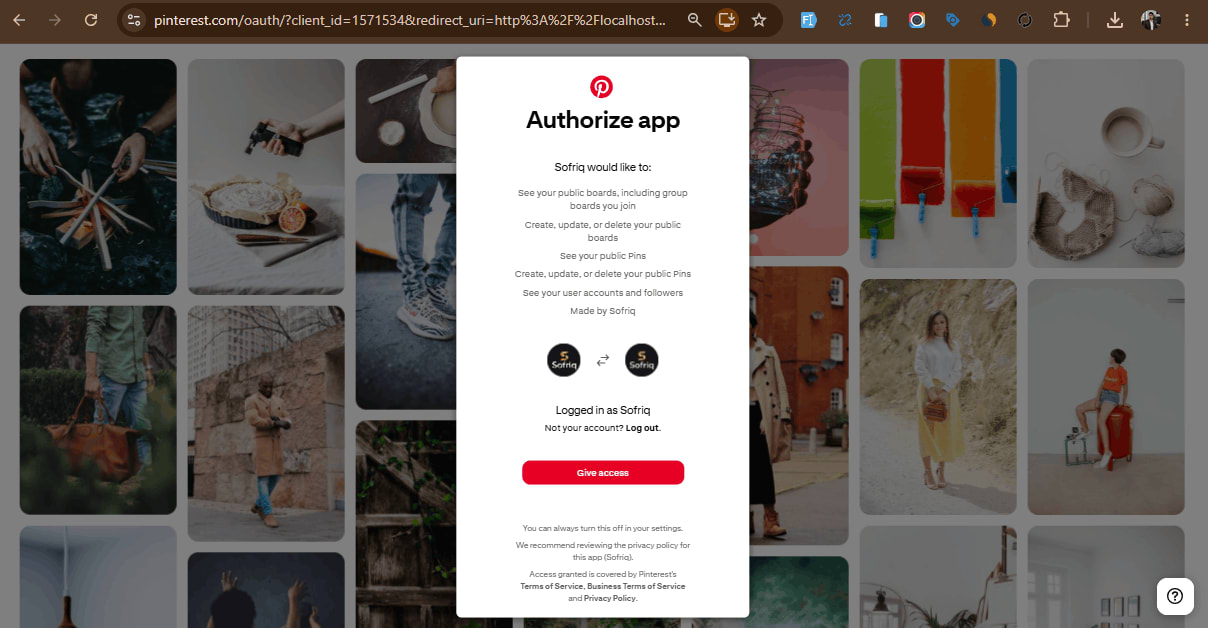
After selecting Connect, SOFRIQ redirects you to Pinterest. Sign in to the Pinterest account that owns or manages the Boards you want to publish to.
Review the account name and requested access on the Pinterest authorisation page. Pinterest may ask SOFRIQ to access account information, Boards, and publishing actions.
If the account and permissions are correct, select Give Access. Pinterest will then redirect you back to SOFRIQ.
What to Do if Pinterest Authorisation Is Cancelled
If you select Cancel, close the authorisation page, or decline the requested access, SOFRIQ cannot complete the connection.
To try again:
- Return to the SOFRIQ Channels page.
- Select Connect on the Pinterest card.
- Sign in to the correct Pinterest account.
- Review the access request.
- Select Give Access.
If the Pinterest account is already connected but permissions have changed, select Reconnect or Add More instead.
Complete the Pending Channels Session
After successful Pinterest authorisation, SOFRIQ redirects you to the Pending Channels page.
The connection process is temporary and includes two time-limited stages:
- Authorisation: complete the Pinterest login and access approval within 10 minutes.
- Account and Board selection: review and save your selection within 15 minutes after authorisation succeeds.
If either stage expires, the pending connection cannot be saved. Return to the Channels page and start the Pinterest connection again.
For a complete explanation of pending connection sessions, visit How to Connect Social Channels with SOFRIQ Publish.
Select Your Pinterest Account
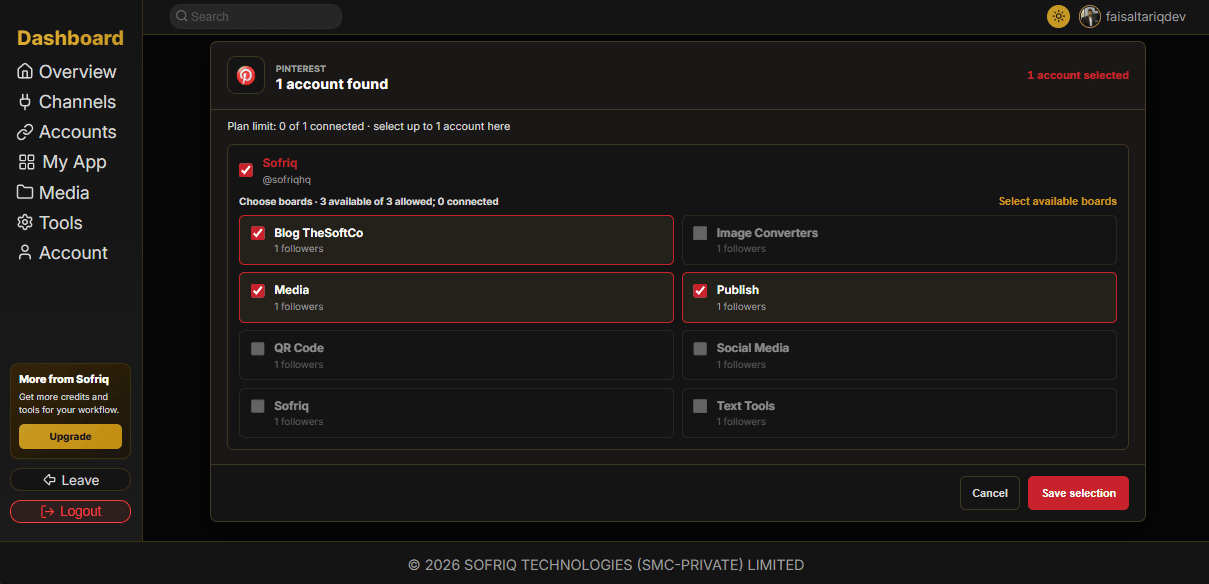
On the Pending Channels page, review the Pinterest account displayed by SOFRIQ.
- Check the account name and username.
- Confirm that it is the Pinterest account you authorised.
- Check the profile image or account details when multiple profiles are available.
- Select the checkbox next to the Pinterest account.
- Confirm that your current plan has an available Pinterest account slot.
Your current connected-account usage and plan limit are displayed on this page. You can also review your account details on the Account page.
Selecting an account is not the final connection step. You must also select at least one eligible Board before saving.
Select Pinterest Board Destinations
A Pinterest Board is a destination for your scheduled Pins. SOFRIQ will load the Boards available to the authorised Pinterest account.
- Review the Board names displayed under the selected account.
- Select the Board where you want to publish scheduled Pins.
- Select multiple Boards if you need to publish to more than one destination.
- Check whether your selections fit within the remaining Board limit.
- Select Save Selection.
Use Select Available Boards if you want SOFRIQ to select available Boards automatically within the remaining destination allowance. Review the automatically selected Boards before saving.
Pinterest Account and Board Limits
The number of Pinterest accounts and Boards you can connect depends on your current SOFRIQ plan.
Account and Board limits are separate. You may have an available account slot but still be unable to add another Board when your Board limit is full. Plan information can change. Compare your current options on the Publish Plans.
Finish Connecting Pinterest
After reviewing the Pinterest account and selected Boards, select Save Selection.
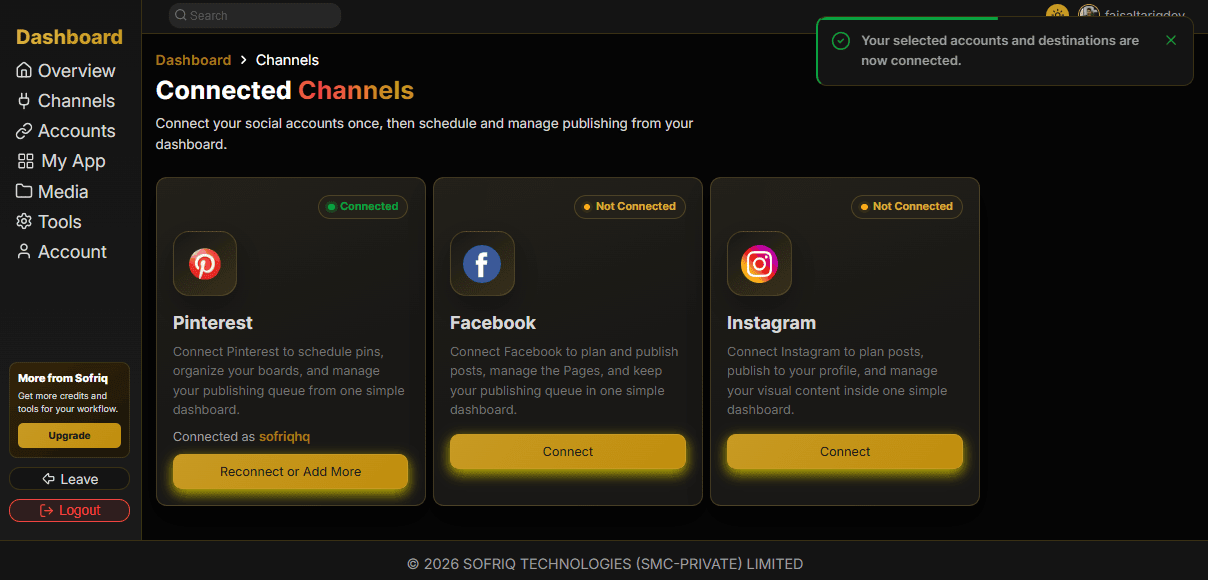
SOFRIQ then validates your selections against your plan limits and saves the connected account and destinations. You are redirected back to the Channels page. A success notification appears with the following message: "Your selected accounts and destinations are now connected." The Pinterest channel status also changes from Not Connected to Connected.
What Happens After Pinterest Is Connected
After the connection is saved, you can select the connected Pinterest account and Board while creating a Publish schedule or editing its destinations.
Before activating a schedule, go to the Accounts Page & verify that:
- The correct Pinterest account is selected.
- Each destination is an eligible Board you can manage.
- The Board still appears in SOFRIQ.
- Your plan account and destination limits have not been reached.
If You Are Not Redirected to Pending Channels
If Pinterest authorisation completes but you are not redirected to the Pending Channels page, the connection may have been cancelled, or the authorisation session may have expired.
- Confirm that you signed in to the correct Pinterest account.
- Confirm that you selected Give Access.
- Return to the SOFRIQ Channels page.
- Select Connect on the Pinterest card again.
- Complete authorisation and account selection within the available session time.
If Pinterest Boards Are Missing
If an expected Pinterest Board does not appear in the account-selection page:
- Confirm that you are signed in to the correct Pinterest account.
- Confirm that the missing Board is owned or managed by that account.
- Confirm that your Pinterest account still has permission to manage the Board.
- Return to the Channels page and select Reconnect or Add More.
- Approve the requested Pinterest access again.
- Review and save the available Boards on Pending Channels.
The Board may also be unavailable because your plan destination limit has already been reached. Remove unused Board destinations or upgrade your plan if you need additional destination capacity.
Reconnect or Add Another Pinterest Account
Select Reconnect or Add More when you need to:
- Refresh Pinterest authorisation.
- Add another Pinterest account within the plan limit.
- Load newly created or newly shared Boards.
- Restore missing or changed permissions.
- Review destinations that were removed on Pinterest.
Complete Pinterest authorisation again, return to Pending Channels, and review your account and Board selections before saving.
Common Pinterest Connection Problems
The Authorisation Session Expired
Pinterest authorisation is available for 10 minutes. Restart the connection from the Channels page and complete the login and access approval within the time limit.
The Pending Selection Session Expired
After authorisation, account and Board selection is available for 15 minutes. If the Pending Channels page expires, reconnect Pinterest and create a new selection session.
The Account Limit Is Reached
Disconnect an unused Pinterest account or upgrade your plan before connecting another Pinterest profile.
The Board Limit Is Reached
Remove unused Board destinations or upgrade your plan to increase your destination allowance.
The Channel Shows Not Connected
Confirm that you completed the full process, including selecting an account and saving at least one Board. If the connection is incomplete or expired, reconnect Pinterest from the Channels page.
The Account Selection Does Not Save
Check whether the Pending Channels session has expired, whether your plan limit is full, or whether the authorisation permissions are no longer available. Resolve the issue, then reconnect and save the selection again.