Creating a Sofriq account is the first step toward centralizing your digital content workflow. Whether you want to schedule pins across Pinterest, automate Facebook and Instagram posts, or manage dynamic QR codes, your account acts as the command center for all Sofriq apps and tools.
Every new account starts on our Free plan with monthly renewing allowances—no credit card or billing details required. In this guide, you will learn how to register via email or Google, how our 6-digit OTP verification works, and how to resolve common sign-up issues.
What You Need Before Starting
To register an account on Sofriq, make sure you have:
- A valid email address: You must have active access to this inbox to receive your 6-digit verification code.
- A modern web browser: Chrome, Edge, Safari, Firefox, or Brave on desktop, tablet, or mobile.
- A unique username idea: A handle between 3 and 21 characters using lowercase letters, numbers, hyphens, or underscores.
How to Create an Account Using Email and Password
Registering with an email and custom password gives you dedicated login credentials independent of third-party platforms. Follow these step-by-step instructions:
Step 1: Open the Registration Page
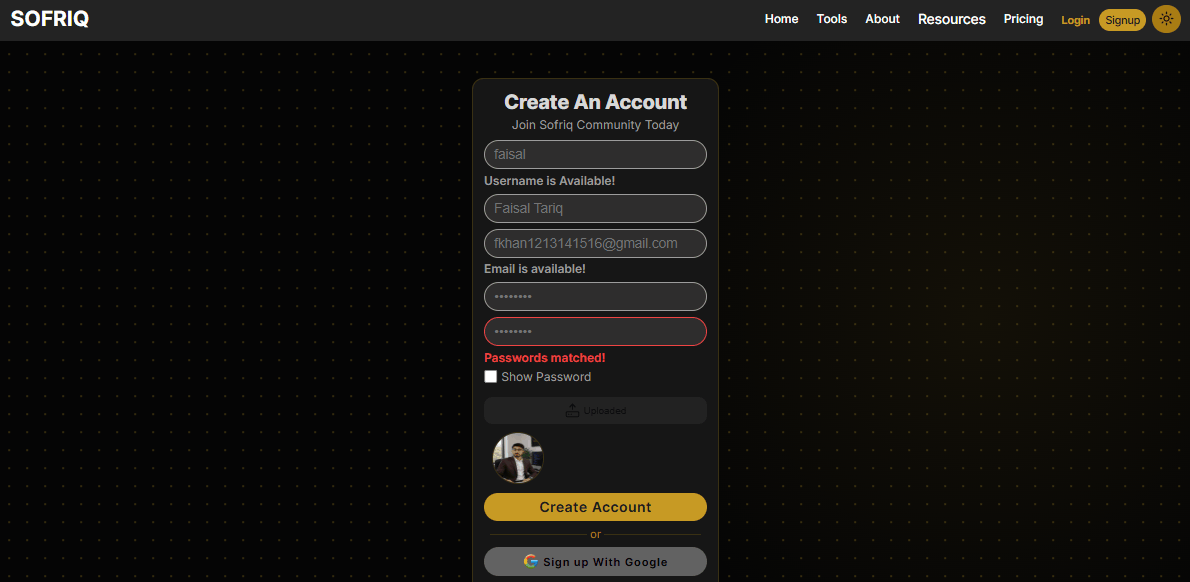
Navigate directly to the Sofriq Sign Up Page. You will see the main registration form titled "Create An Account".
Step 2: Enter a Unique Username
Type your desired handle in the Username field. Sofriq runs an instant live check against our database to confirm whether the username is available.
- Length: Must be between 3 and 21 characters.
- Allowed characters: Lowercase English letters (
a-z), numbers (0-9), underscores (_), and hyphens (-). - Live indicators: A green indicator confirms "Username is Available!", while a warning alerts you if the username is already taken.
Step 3: Provide Your Full Name and Email Address
Enter your real name or business name in the Full Name field. In the Email field, enter an inbox you check regularly. Our system checks your email formatting in real-time to prevent accidental typos.
Step 4: Create and Confirm Your Password
Enter a secure password in the Password field, then re-enter the exact same value in the Confirm Password field. You can check the Show Password box to reveal the characters and ensure both fields match before submitting.
Step 5: (Optional) Add a Profile Picture
Click the Upload Profile Picture button to personalize your avatar right away. Sofriq accepts standard image formats including .png, .jpg, and .jpeg. If you prefer to skip this step, you can always upload or update your avatar later from your account settings.
Step 6: Click "Create Account"
Once all required fields display valid status indicators, click the Create Account button. The form will transition immediately into the email verification stage.
How to Sign Up with Google (1-Click Method)
If you prefer not to manage a separate password, you can register instantly using your Google credentials:
- Visit the Sofriq Sign Up Page.
- Scroll to the social login section and click Sign up with Google.
- Select your preferred Google account from the standard Google authentication window.
- Grant permission to verify your email and basic profile.
- You will be redirected straight to the onboarding screen with your verified Google email automatically linked.
How to Verify Your Email Address (6-Digit OTP)
To protect our platform against automated spam and ensure you never lose access to your scheduled posts and digital assets, Sofriq uses a secure One-Time Password (OTP) verification mechanism.
The Verification Workflow
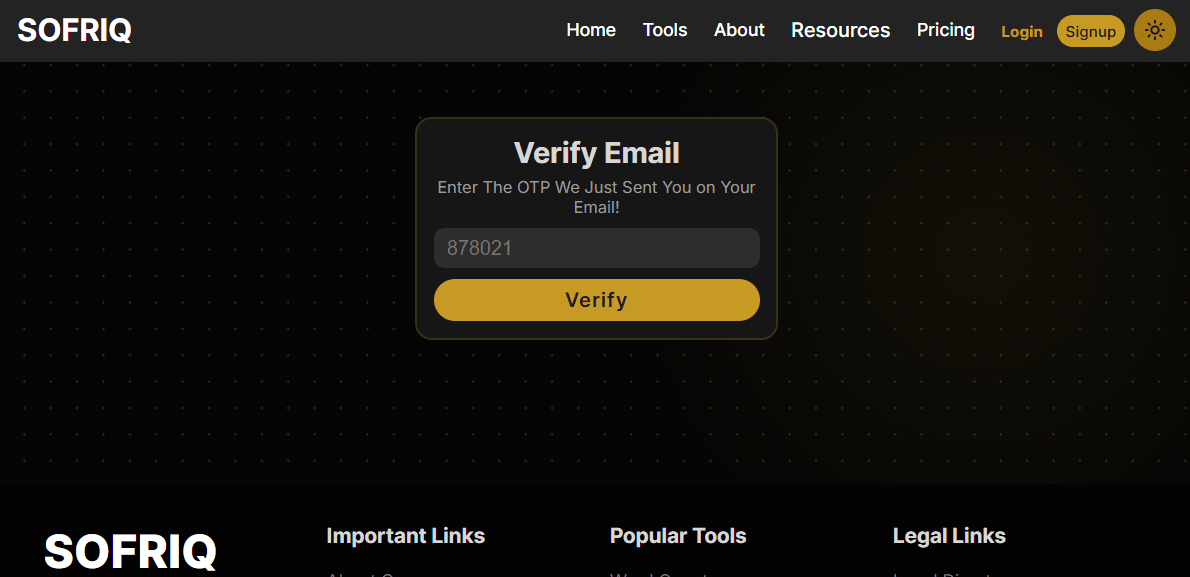
- Immediately after clicking Create Account, an on-screen prompt displays: "Verify Email — Enter The OTP We Just Sent You on Your Email!".
- Check your inbox for an incoming message with the subject line: "Your Sofriq verification code".
- Open the email to find your bold, highlighted 6-digit numeric code.
- Return to the browser tab, enter the code into the verification input box, and click Verify.
Important Expiration Window: Each verification OTP is valid for exactly 5 minutes. If you do not enter the code within this window, the code expires for security purposes.
Troubleshooting Account Creation and Verification Issues
Here are clear solutions to the most common issues users encounter during registration:
Why did I not receive my OTP verification email?
If your 6-digit code has not arrived after 60 seconds, check the following:
- Check your Spam or Junk folder: Automated verification emails can occasionally be miscategorized by email providers like Gmail, Outlook, or Yahoo.
- Inspect the email address for typos: Double-check that your email was spelled correctly without extra spaces or swapped characters (e.g.,
gmai.cominstead ofgmail.com). - Wait for network latency: Occasionally, corporate or institutional firewalls delay automated transactional emails by 1-2 minutes.
What should I do if the OTP code expired?
If more than 5 minutes have passed since you clicked Create Account, your code will be rejected with an "Invalid OTP" message. Refresh the sign-up page or resubmit your registration details to receive a new, active verification code.
Why does the form say "Username is Already Taken"?
Every username on Sofriq is globally unique because it defines your creator identity and public workspace references. If your desired handle is occupied, try adding numbers, an underscore, or an abbreviation (for example, abc_design or abc_studio).
Do I need to enter credit card or payment information?
No. Creating an account on Sofriq is completely free. You will never be asked for billing details or credit card information during registration. Every account automatically receives our base monthly allowances for scheduling, image conversion, and tools at zero cost.
What Happens After Your Account Is Created?
Once you verify your 6-digit OTP code, your account is activated immediately, and you will be guided through a brief, 2-step setup before reaching your workspace:
The "Pending Setup" State
Depending on how you signed up, your account is finalized in one of two ways:
- If you signed up with Email & Password: Verifying your 6-digit OTP creates your basic account in our database, but it is marked as Pending Onboarding. You must complete the onboarding step to fully unlock your workspace and dashboard.
- If you signed up with Google: Authenticating with Google creates a temporary 15-minute setup session. Your permanent account record is officially created in our database only after you choose your username and complete the onboarding step.
The 2-Step Onboarding Screen
To help us personalize your experience and understand what brings creators to our platform, Sofriq asks two quick questions:
-
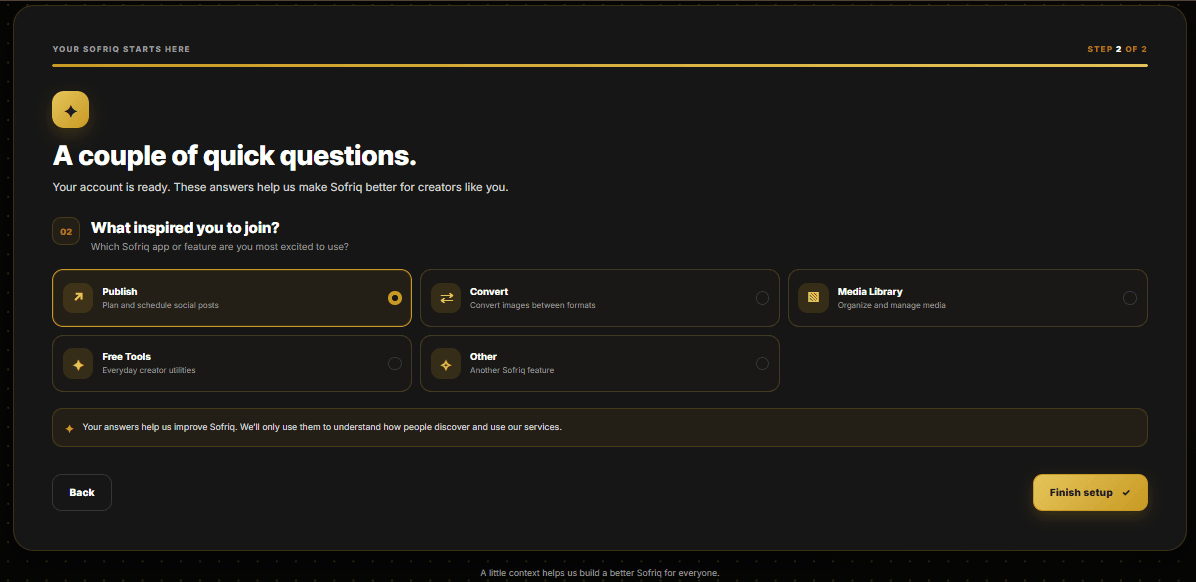
Step 1: "How did you find us?"
Tell us what brought you to Sofriq (such as Google Search, YouTube, Instagram, TikTok, Facebook, Reddit, or a friend’s personal recommendation). You can also select "Prefer not to say" if you wish to skip sharing this.
-
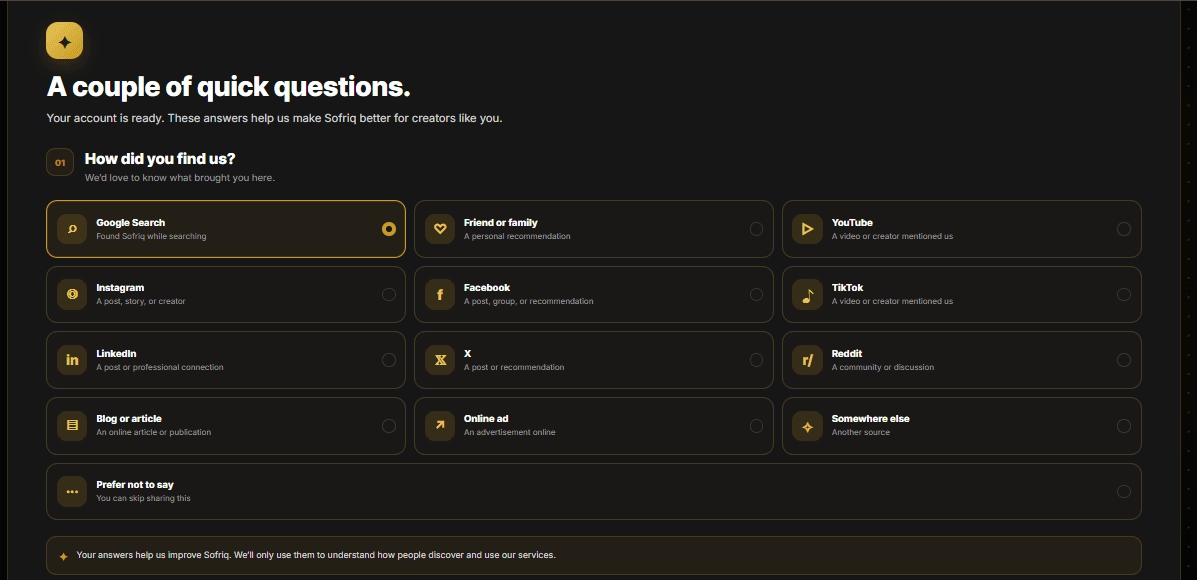
Step 2: "What inspired you to join?"
Choose which core Sofriq app or feature inspires you to create an account. It helps us improve our services:- Publish: Plan, organize, and schedule posts across Pinterest, Facebook, and Instagram.
- Convert: Transform and compress images between WebP, PNG, and JPG.
- Media Library: Centralize your photos, graphics, and digital brand assets.
- Free Tools: Quick everyday utilities like word counters, case converters, and tag generators.
- Other
Landing on Your Workspace Dashboard
As soon as you finish the two quick onboarding questions and click Finish setup, you will land directly inside your main Sofriq Dashboard. From here, your publishing calendar, connected social channels, media library, and monthly credits are immediately available to use.
Account Lifetime and 7-Day Login
- Your Account is Permanent: Once created, your Sofriq account never expires. Your saved drafts, media files, and settings remain permanently stored in your account unless you manually request their deletion.
- 7-Day Secure Session: For your privacy and security, your active login session remains remembered for 7 days on your device. After 7 days of inactivity, you will simply be prompted to log back in with your password to ensure your account remains protected.
Next Steps
Now that your account is ready, proceed to our next documentation guides to complete your setup:
- Learn how to sign back in securely or regain access if you forget your credentials in our guide: Log in and reset your password.
- Explore how our modular applications work together in Choose your app.
- Connect your Pinterest, Facebook, or Instagram accounts in the Publish Overview.