Sofriq groups related tasks into dedicated apps and tools. Before starting a workflow, choose the workspace that matches your goal instead of navigating through unrelated dashboard sections.
How do I open the Sofriq app hub?
Before opening a dashboard, you need to create a free account or log in to an existing account. Without an account, you can access your dashboard! After logging in to your account,
- Open the Sofriq dashboard.
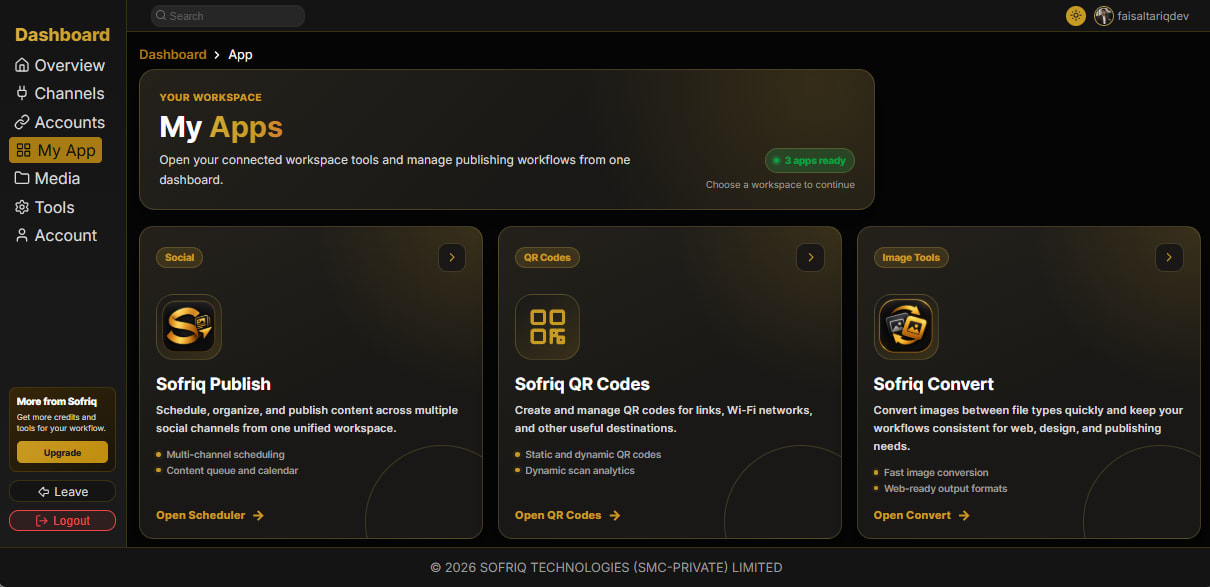
- Go to My App from the dashboard sidebar.
- Review the available app cards.
- Select the app that matches the task you want to complete.
Open each app only from your logged-in dashboard, and sign in again if the page requires an active session.
Which Sofriq app should I choose?
Choose your app based on the task you want to complete.
- SOFRIQ Publish: schedule and manage social content across connected channels.
- SOFRIQ QR Codes: create and manage QR codes and review dynamic QR scan analytics.
- SOFRIQ Convert: convert images between supported image formats.
If your task is about stored images rather than image conversion, open Media instead of Convert.
What is Sofriq Publish used for?
SOFRIQ Publish is the app for planning and scheduling social media posts. Its dashboard workspace includes a scheduler, post creation flow, accounts, destinations, and publishing status information.
Use Publish when you want to:
- Schedule a new social post.
- Review or edit upcoming posts.
- Manage connected social accounts and destinations.
- Check the status of published, scheduled, or failed posts.
Open Publish, then select Create New Schedule to start. Remember that one of your social accounts (eg., Facebook, Instagram, or Pinterest) should be connected with SOFRIQ.
When should I use Sofriq QR Code Generator?
SOFRIQ QR Code consists of two types: Static and Dynamic. It is the right workspace for creating, viewing, downloading, and managing Dynamic QR codes. It supports the QR Code workflows available under the app hub, including dynamic QR analytics.
Choose this app when you need to:
- Create a QR code for a link or supported destination.
- Download or print a QR code.
- View or manage previously created codes in the QR Code App.
- Review scan analytics for a dynamic QR code.
Open the App at SOFRIQ QR Code.
When Should I Use Sofriq Convert?
Sofriq Convert is the app for image conversion. It converts images between supported formats and is useful when preparing files for websites, publishing, or sharing.
Choose this app for image format conversion rather than social publishing. Available conversion options can also be accessed from the dashboard Tools page.
Open the app at Sofriq Convert.
What is Media Library?
Media Library is Sofriq’s central library for your uploaded images. Every image uploaded through SOFRIQ, including images used in Publish, Convert, or other tools, can be saved here automatically.
Open Media from the dashboard sidebar to upload, download, organise, preview, and manage your images. Images remain in your Media Library until you move them to Trash and permanently delete them.
What Are Dashboard Tools?
Tools provide quick utilities that do not need their own complete app workspace. Dashboard tools can include converters and text utilities currently listed on the Tools page.
Use Tools when you need a short, focused operation and do not need to manage a project, connected account, or media library.
How Do I Switch Between SOFRIQ Apps?
Use the dashboard sidebar to open another workspace. For example:
- Select My App to view available apps.
- Select Media to manage uploaded files.
- Select Tools to open quick utilities.
- Select Overview to return to the dashboard summary.
Tasks in one app may link to another workspace. Unsaved work should be reviewed before leaving a page.
Why can't I find an expected app?
The app hub displays the apps currently available to your dashboard. If a particular card is not visible, check that:
- You are logged in to the correct Sofriq account.
- The app is available in your current dashboard.
- The browser page has loaded completely.
- A feature is not listed under Tools or Media instead.
If you are sure that an app should be available, refresh the app hub or return to the dashboard overview.
Common FAQs
How many apps are shown in the Sofriq app hub?
We have 3 (Publish, QR Code, and Convert) apps. Our team is working on new apps. Follow us on social channels for the latest updates.
Which app should I use for social media scheduling?
Use Sofriq Publish for social scheduling, connected social accounts, and publishing workflows.
Which app should I use for QR codes?
Use Sofriq QR Codes to create, manage, download, and analyse supported QR codes.
Which app should I use to convert images?
Use Sofriq Convert. Image conversion tools are also listed on the dashboard Tools page.
Is Media an app?
Media is shown as a separate dashboard workspace and opens from the dashboard sidebar.
Next Steps
Continue with the workspace that matches your current goal, or review these getting-started guides:
- Learn how to create your Sofriq account.
- Learn how to log in and reset your password.
- Start scheduling content with the Publish overview.
- Find recently uploaded files in your Media library.
- Browse available image and text utilities on the Tools page.