If you've ever asked someone to "go to my channel and hit subscribe," you know how many small steps that involves. They have to open YouTube, search for your name, work out which result is really you, and then decide whether to subscribe. A direct YouTube channel link removes most of that hunting. A YouTube subscribe link goes one step further, because it is built to take the visitor straight to your channel and invite them to confirm a subscription.
Sofriq's YouTube Subscribe Link Generator is a free, browser-based tool that formats that link for you. You enter your channel, click a button, and get a link you can copy and share. This guide explains what the link is, how the tool works, where it makes sense to share it, and what the tool does not do.
What Is a YouTube Subscribe Link?
A normal YouTube channel link opens your channel page, for example https://www.youtube.com/@yourchannel. A YouTube subscribe link is the same address with one extra piece added to the end: the sub_confirmation=1 query parameter.
That parameter is a widely used way to ask YouTube to show a subscription confirmation prompt when someone opens the link. A finished link looks like this:
https://www.youtube.com/@yourchannel?sub_confirmation=1
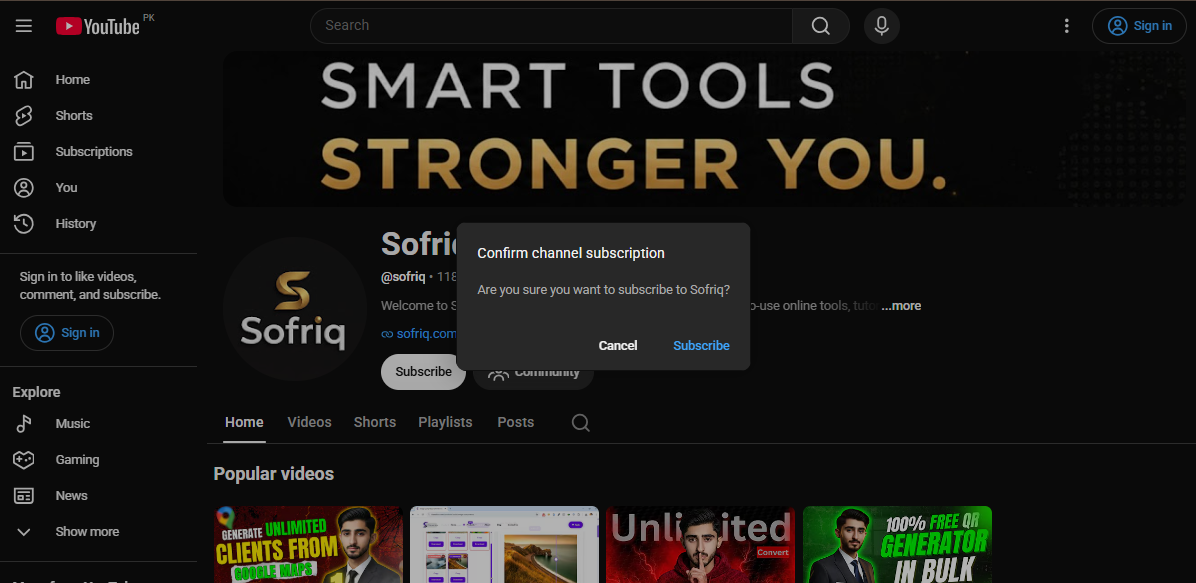
It is worth being clear about how far this goes. The parameter is only a request. What the visitor actually sees is decided by YouTube, and it can depend on whether they are signed in, which device or app they use, and how YouTube chooses to handle the request at that moment. Nobody is subscribed just by opening the link. If a prompt appears, the visitor still decides whether to subscribe or cancel.
What the YouTube Subscribe Link Generator Does
The tool does one job: it takes the channel address you enter and formats it into a shareable link that includes the sub_confirmation=1 parameter. Everything runs in your browser, and you don't need an account to use it.
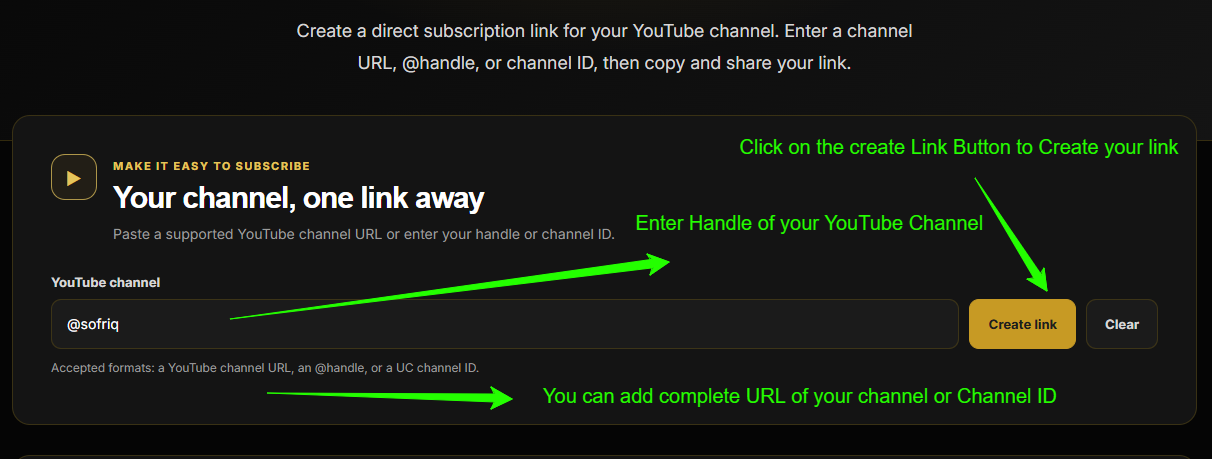
It accepts three kinds of input:
- A YouTube channel URL, such as
youtube.com/@yourchannel - A YouTube @handle, such as
@yourchannel - A channel ID, the longer identifier that begins with
UC
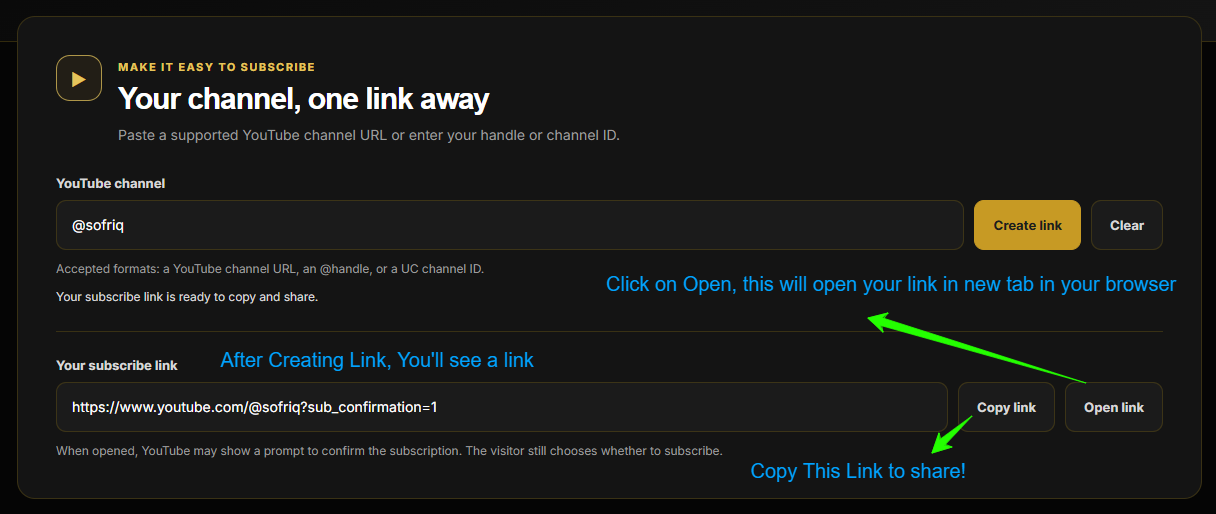
Once the link is created, you get four simple actions: Create link, Copy link, Open link, and Clear.
What it doesn't do
A few limits are worth knowing before you use it:
- It formats what you type. It does not contact YouTube, so it can't confirm that the channel exists or that you spelled the handle correctly.
- It doesn't subscribe anyone, and it can't tell you who has or hasn't subscribed.
- It can't guarantee what a visitor will see once they open the link. That part belongs to YouTube.
- It doesn't accept video or playlist URLs as channel input. It is built for channel addresses only.
- It doesn't promise more subscribers, more views, or better rankings. It makes a link easier to build and share, and what people do with it is up to them.
How to Create Your YouTube Subscribe Link
The whole process takes less than a minute.
Step 1: Enter your channel
Open the YouTube Subscribe Link Generator and type or paste your channel into the input field. The easiest option for most people is the @handle, but a full channel URL or a UC channel ID works just as well. Click Create link. The tool formats your input and shows the finished subscribe link in a separate field below.
Step 2: Copy or open the link
Use Copy link to copy the generated URL to your clipboard so you can paste it wherever you need it. Use Open link to preview it in a new browser tab and confirm it opens the right channel. Remember: if you open the link while signed in to your YouTube account, you may not see the subscribe prompt. If you want to start over or try another channel, Clear resets the field.
Check the Link Before You Share It
Because the tool doesn't check with YouTube, a quick test on your side is the best way to catch mistakes. A few habits help:
- Open it first. Use the Open link button and confirm it lands on your channel and not somebody else's.
- Look at the spelling. A single wrong character in a handle can point to a different channel or to nothing at all.
- Try it as a visitor would. If you can, open the link in a private or incognito window, or while signed out, so you see something closer to what a new visitor sees. It may look different from what you see on your own signed-in account, and that is normal.
- Re-check if your handle changes. If you ever change your channel handle, links built from the old one may stop working, so generate a fresh link and update the places you've shared it.
Where to Share Your YouTube Channel Link
A subscribe link is most useful in places where people are already curious about you. Some sensible spots:
- Your website or blog. An "About" page, a footer, or a contact page works well. If you publish videos, a short line like "Watch on YouTube" with the link is enough.
- Your newsletter. Readers who like your writing may also like your videos, and a single link at the end of an issue is easier to act on than a vague mention.
- Other social profiles. The bio or link section on Instagram, X, LinkedIn, or Facebook is a natural home for it.
- Video descriptions. Viewers who already enjoy one video can find the link without searching.
- Email signatures and business pages. Small businesses, teachers, and organizations can include it alongside their other contact details.
Less is better here. One clear link in a relevant place beats the same link dropped into every comment section and group chat you can find. Repeated posting tends to annoy people, and platforms often treat it as spam. Share the link where it helps someone, and let them decide what to do next.
Using Your Subscribe Link in a QR Code
Printed material is one place where a long link is awkward, since nobody wants to type a URL from a flyer. If you need your channel to be reachable offline, you can turn the link into a QR code.
QR codes are a separate Sofriq tool, so this is a two-step process. First, create your subscribe link with the YouTube Subscribe Link Generator and copy it. Then paste that URL as the destination in Sofriq QR Codes, where you can generate the code. This can be handy for a flyer, a business card, an event display, a menu, or a poster.
Keep in mind that scanning a QR code doesn't subscribe anyone. It simply opens the link on the person's phone, and from there they choose whether to subscribe on YouTube. Before printing anything, scan the code yourself with your phone to make sure it goes where you expect.
Who Is This Tool Useful For?
Anyone with a YouTube channel who wants a tidy way to point people to it can use this. That includes:
- Creators and streamers who want one reliable link for their bio, profile pages, and community posts.
- Small businesses sharing product demos, tutorials, or behind-the-scenes videos.
- Educators who post lessons or lecture recordings and want students to find the channel easily.
- Artists and musicians who want fans to reach their channel from a portfolio or a gig poster.
- Organizations and communities that publish talks, events, or announcements on YouTube.
Frequently Asked Questions
What input formats are accepted?
The tool accepts a YouTube channel URL (such as youtube.com/@yourchannel), a YouTube @handle (such as @yourchannel), or a channel ID that begins with UC. Use whichever one you have on hand.
Does the link automatically subscribe someone?
No. Opening the link doesn't subscribe anybody on its own. The link includes the sub_confirmation=1 parameter, which asks YouTube to show a confirmation prompt, but YouTube controls what the visitor actually sees, and the visitor still chooses whether to subscribe.
Can the tool verify whether someone subscribed?
No. The tool only creates the link. It doesn't track clicks, check subscriptions, or connect to your YouTube account. For subscriber information, use the analytics inside YouTube Studio.
Are video or playlist links accepted?
No. The generator is designed for channel inputs only: a channel URL, an @handle, or a UC channel ID. Links to individual videos or playlists aren't supported as input.
Can the generated link be used in a QR code?
Yes. The link is a normal web address, so you can paste it into a QR code tool as the destination. Sofriq's QR Code Generatoris a separate tool, so you would create your subscribe link here first and then use it there. A QR scan only opens the link, and the person scanning still decides whether to subscribe.
Does the tool check that my channel exists?
No. It formats whatever you enter and doesn't contact YouTube. That is why opening the link yourself before sharing it is a good habit.
Do I need an account to use it?
No account is required. You can create, copy, and open your link right away.
Final Thoughts
A good YouTube channel link takes the guesswork out of finding you. With the YouTube Subscribe Link Generator, you can turn your handle, channel URL, or channel ID into a ready-to-share link in a few clicks, then test it and place it where your audience will actually see it. What happens after someone opens the link is between them and YouTube, but you've at least made the first step easy.