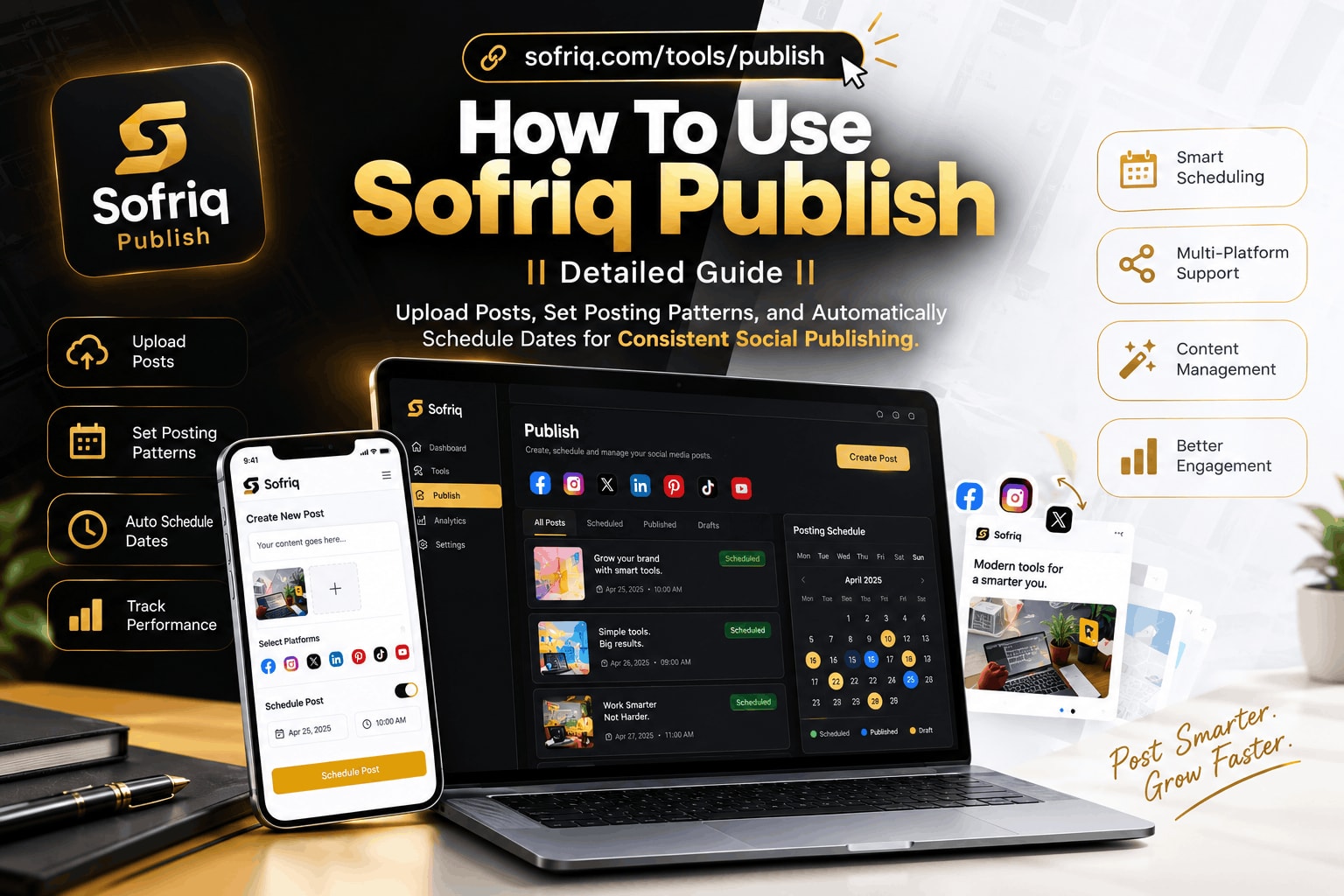
How to Actually Automate Your Posts
If you've ever managed social accounts seriously, you know the routine that quietly burns an entire afternoon: open a channel (eg., Facebook), upload one image, write a description, hit publish, open the next channel, and do it all over again. Multiply that by thirty posts a month, and it stops being "content marketing" and starts being data entry with extra steps.
That's the exact problem Sofriq Piublish was built to remove. Instead of guessing when to post or babysitting uploads one at a time, you set the rules once — timing, frequency, images — and the system carries them out on its own, in the background, even after you've closed the tab. Here's what it actually looks like to use it, from the first login to the moment your posts start going live on their own.
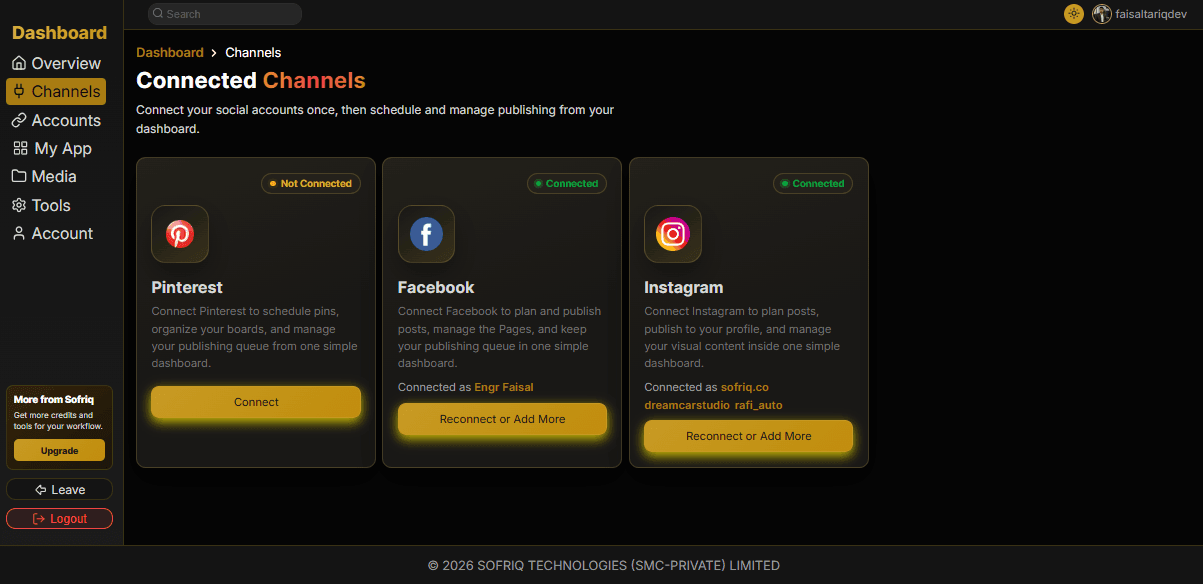
Step 1: Connect Your Channels
You'll need a free Sofriq account to get started, which is a deliberate choice rather than an inconvenience — since the tool connects directly to your real social accounts through their official APIs, keeping that connection behind a login protects your data and your API tokens. Once you're signed in, connecting your social accounts in a single click.
Go to your dashboard => Channels => there you'll see a Connect button on each channel. Go to Channels
Step 2: Tell It When and Where
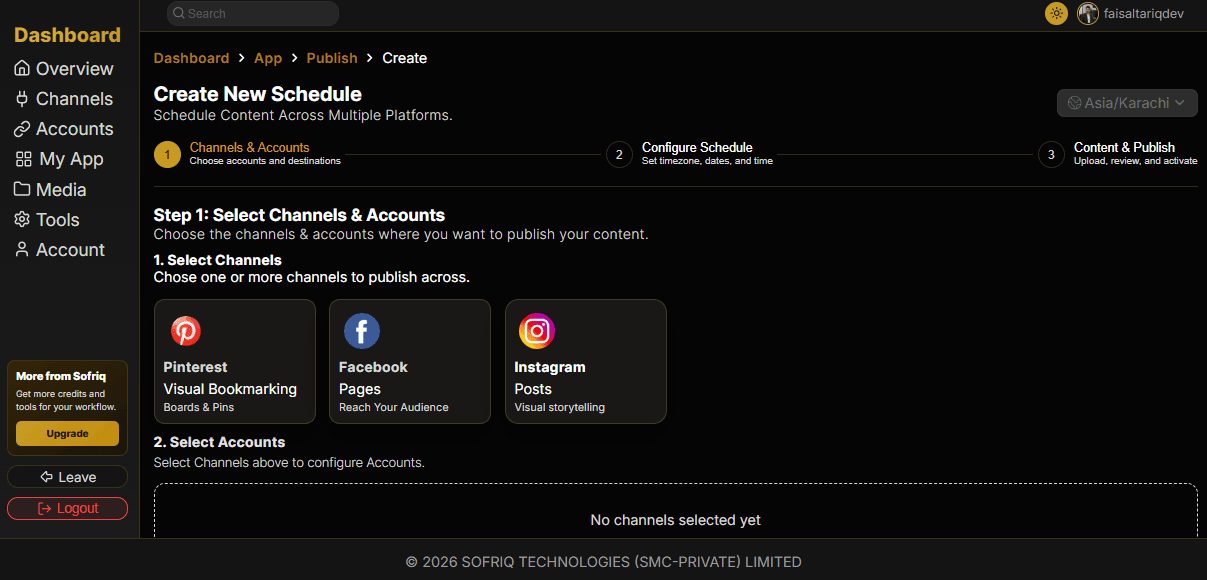
After connecting your account, navigate to Dashboard => App => Publish => Create New. Go to Create Schedule
Select Channels
Schedule creation starts by selecting Platform. As Publish supports multiple Channels, you can select multiple channels or a single one based on your case. Click on the channels you want to publish your post.
Select Accounts
After selecting your channels, all of your connected accounts will appear. Choose one of your connected accounts. You can select multiple accounts based on your plan.
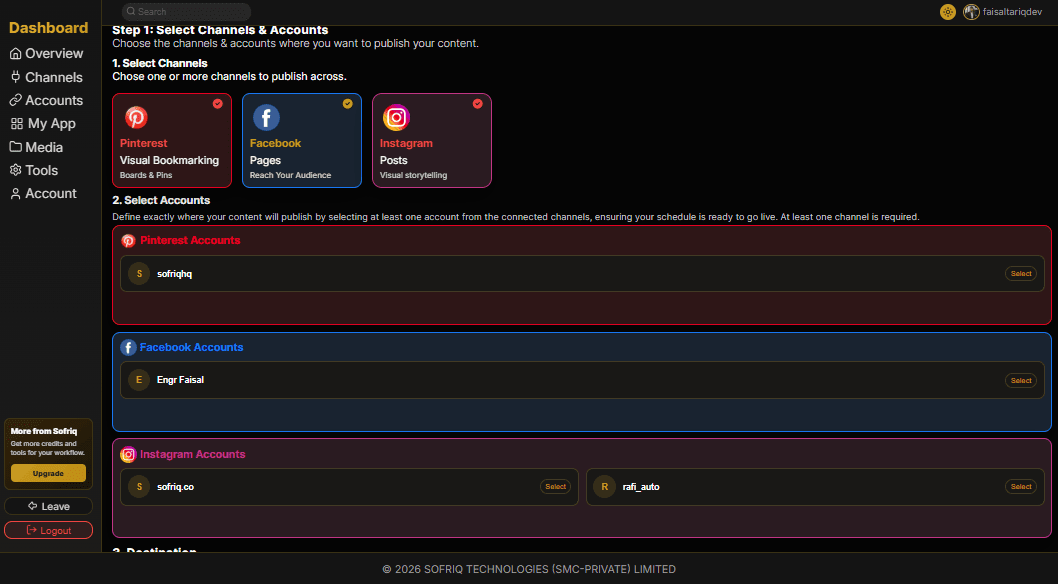
Select Destinations
Destinations are Facebook Pages or Pinterest Boards. After selecting accounts, all of your connected destinations will appear. You can choose one or multiple destinations. Instagram doesn't have any destinations.
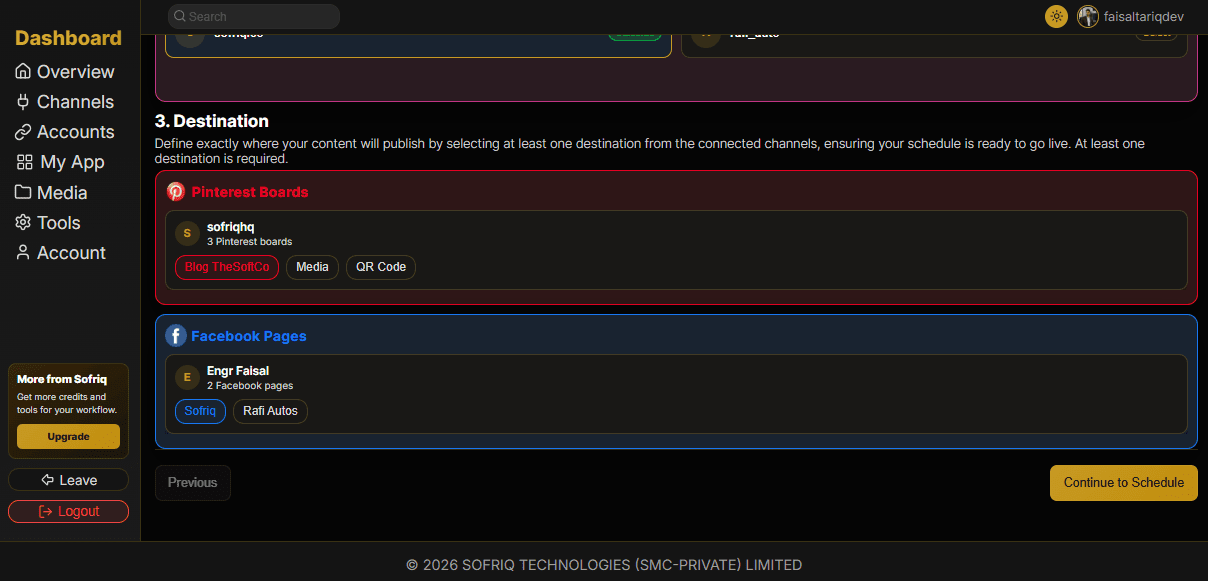
After selecting all of your channels & accounts, click on Continue to Schedule.
Step 3: Choose Your Posting Rhythm - Main Body of Your Schedule
Next, you pick how often you want to post — daily, every second day, every third day, business days only, or weekdays only. This is where a lot of the manual guesswork used to creep in, because figuring out exactly how many post slots that adds up to over a three-week campaign is the kind of math nobody wants to do by hand. The scheduler does it instantly: Before adding Schedule name, check your timezone showing on the top right corner, add a schedule name (It is like a name of collection, like June Offer - One Schedule can contain multiple posts), add From & To Date (This is the date range, like From June 1 To June 30), pick a frequency (Like Daily 1 Post should be published), add the exact time when the posts should be published (like 12:AM), and it calculates the exact number of available slots across your chosen date range, frequency, Timezone, & Time before you've uploaded a single image. After filling in all the details, click on Generate. It will check your plan, remaining Credits, post slots, & required credits. Then it will generate available post slots. Example
October 26, 2026 to October 31, 2026, Daily 1, Time 12:00 AM => Then it will generate 6 Post Slots.
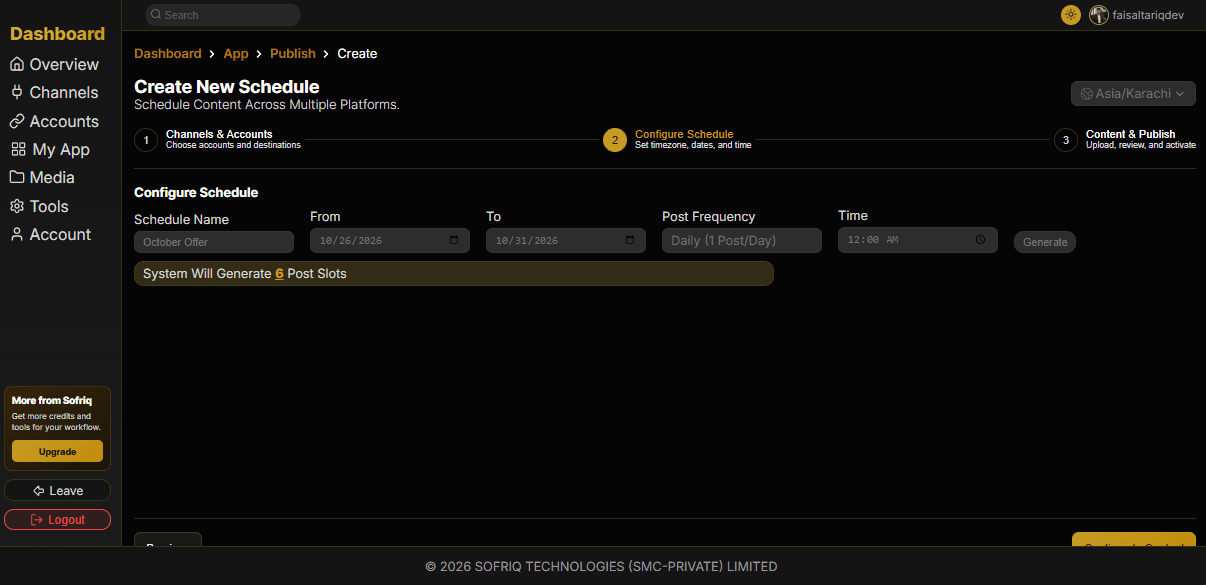
After generating, click Continue to Content
Step 4: Add Media
With your slots calculated, click on the Add Button in the top right corner to add images. It will add a new Popup to add images — JPG or PNG, up to 10MB each based on your plan. You can add images in two ways: Media Library & Upload.
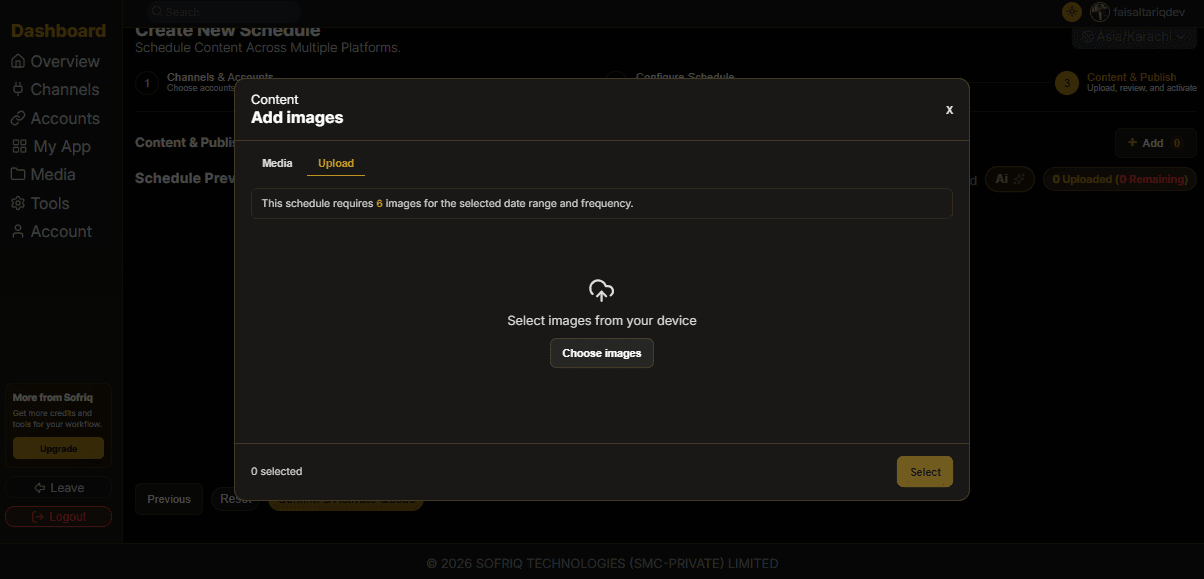
The order you drop them in is the order they get scheduled in, mapped directly onto the slots you just generated. You can separately change dates of individual posts.
Step 5: Add the Details That Actually Matter - Edit Post Details
Automation shouldn't mean losing your voice, and this is where that shows. Every post the system generates comes with its own edit button, and opening it lets you write the actual post title, a full description, and the destination link it should point to.
In Pinterest, title and description are required. The description should be max 800 characters. Always remember your post will include a watermark in the description on the Free Plan.
In Facebook & Instagram, the title will be ignored & only contains description & link. Description is required & link is optional.
Also remember, in the Free Plan You'll get a Watermark on the Post Description & Image. In the description, it will be like this:
This post is automatically published by Sofriq Publish. Scan the QR code to automate your posts across multiple channels at once.
You can update destination, channels, account, title, description, link, & time of individual post in the edit post dialog.
Ai Copy
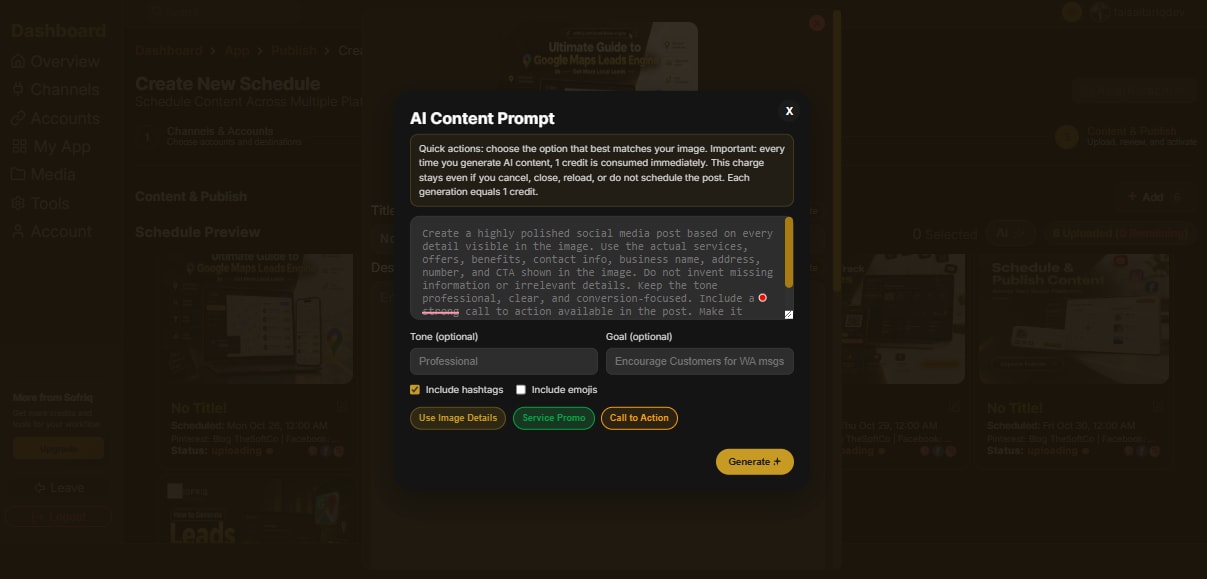
In this AI era, you can generate your post title and description using AI in just one click while editing your post. Click on the edit button, then click on AI near the title paste button on the title. It will open a new dialog for AI Copy. Write a prompt in detail that you want, or use existing presets like Use Image Details, Call to Action, or Service Promo. Then click on the Generate button. It will start generating post Ai copy.
Step 6: Check In Through the Dashboard
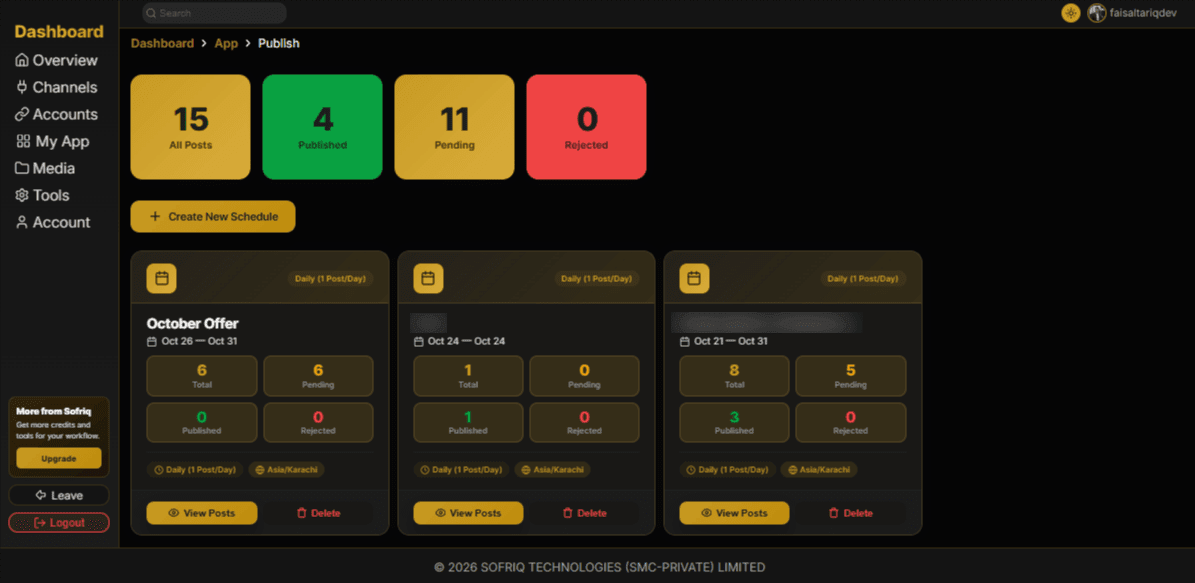
After updating all posts, click on Confirm & Activate Queue. When posts save successfully in our database, you'll be redirected to your publish dashboard. A dashboard shows every post you've scheduled, broken down as published, pending, or rejected, alongside the image, content details, and status for each one. If you're the type who likes to double-check that things actually went out the way you planned, this is where you'll come back to look.
A Few Things People Usually Ask
Do I need a Business account?
The application connects via official APIs, so it works from the same account you're already pinning from – no extra business-only setup, beyond what's already needed for API access. If you have multiple Accounts to connect with Sofriq, you can do so based on your plan.
What happens if I need to change something after it's scheduled?
Nothing is locked in once it's queued. Every post keeps its edit option available right up until it publishes, so a title, description, link, or even the scheduled date can be changed at any point before it goes live. After it's published on the channel, you can edit post details; this feature isn't available for Instagram.
Is it safe to connect my real social account?
The connection runs through official APIs rather than any workaround, and the dashboard itself sits behind your authenticated Sofriq login — the same baseline security approach used for the account data itself.
Getting Started
If your workflow still looks like the one-image-at-a-time routine described at the start of this article, the fastest way to see the difference is just to try it on one real campaign. Connect your account, set your dates, drop in a week's worth of images, and watch the slots fill themselves in. There's a small satisfaction in checking the dashboard a few days later and seeing posts marked "Published" that you haven't personally touched since the day you uploaded them — it's a quiet kind of proof that the system is actually doing what you set it up to do.
Join the Conversation
Share your perspective, ask thoughtful questions, or leave constructive feedback about this article.